 HSE.myUser Guide
HSE.my · PUBLIC USER GUIDE
Insights, reporting & administration
Turn controlled records into readable analysis, governed reports and organization configuration.
Search this category by module, function, role or example scenario.
INSIGHTS & ADMINISTRATION
Insights, reporting & administration
Turn controlled records into readable analysis, governed reports and organization configuration.
01 INSIGHTS & ADMINISTRATIONAnalytics & reportsCertified analysis pages for operational, safety, health, environment and compliance indicators.
What you can do
- Choose an analysis page and apply its permitted organization-unit/date filters.
- Review the filtered source register beneath charts before relying on a metric.
- Print/export the approved report output where your role permits.
Authorized role examples
Analytics Reader, Report Owner and Organization Administrator according to report scope.
Example scenario
A manager reviews the environmental monitoring trend, opens the related filtered register beneath the graph and follows up on an exceedance.
ANNOTATED CLICK GUIDE
Apply permitted filters, review the chart, then select Open source register before relying on a metric.


/workspace/analytics- Tap More in the bottom navigation.
- Select the relevant shared service or search for it in the module picker.
- Open the linked controlled workspace before taking an action.
The service displays only the records/functions authorized by your active role and organization-unit scope.
02 INSIGHTS & ADMINISTRATIONStarter registration & package usageCreate an organization with email verification, invite your team and monitor package allowances.
What you can do
- Choose Starter on the landing page. Enter your organization name, industry, full name, job title, phone number, email and a password of at least 12 characters.
- Open the verification email and select Confirm my email. Links last 24 hours and can be used once. Use Resend verification if needed.
- Sign in and open Administration → Package & usage. Starter includes one HSE owner, two non-HSE users and one contractor portal seat.
- Invite non-HSE users by email. Invitations last 48 hours. Existing users enter their existing password; new users create a password. Cancel or resend unused invitations from Package & usage.
- Configure your real site and organization geofence in GIS before public reporting. Demo boundaries are illustrative.
- Starter identity and branding remain fixed. Use Explore upgrades to request a quotation. Safety reports and their evidence remain accepted above the monthly allowance.
Authorized role examples
Verified organization owner; invitees only join the organization named by their invitation.
Example scenario
A construction owner verifies an email, configures a site and invites two team members under a separate organization code.
ANNOTATED CLICK GUIDE
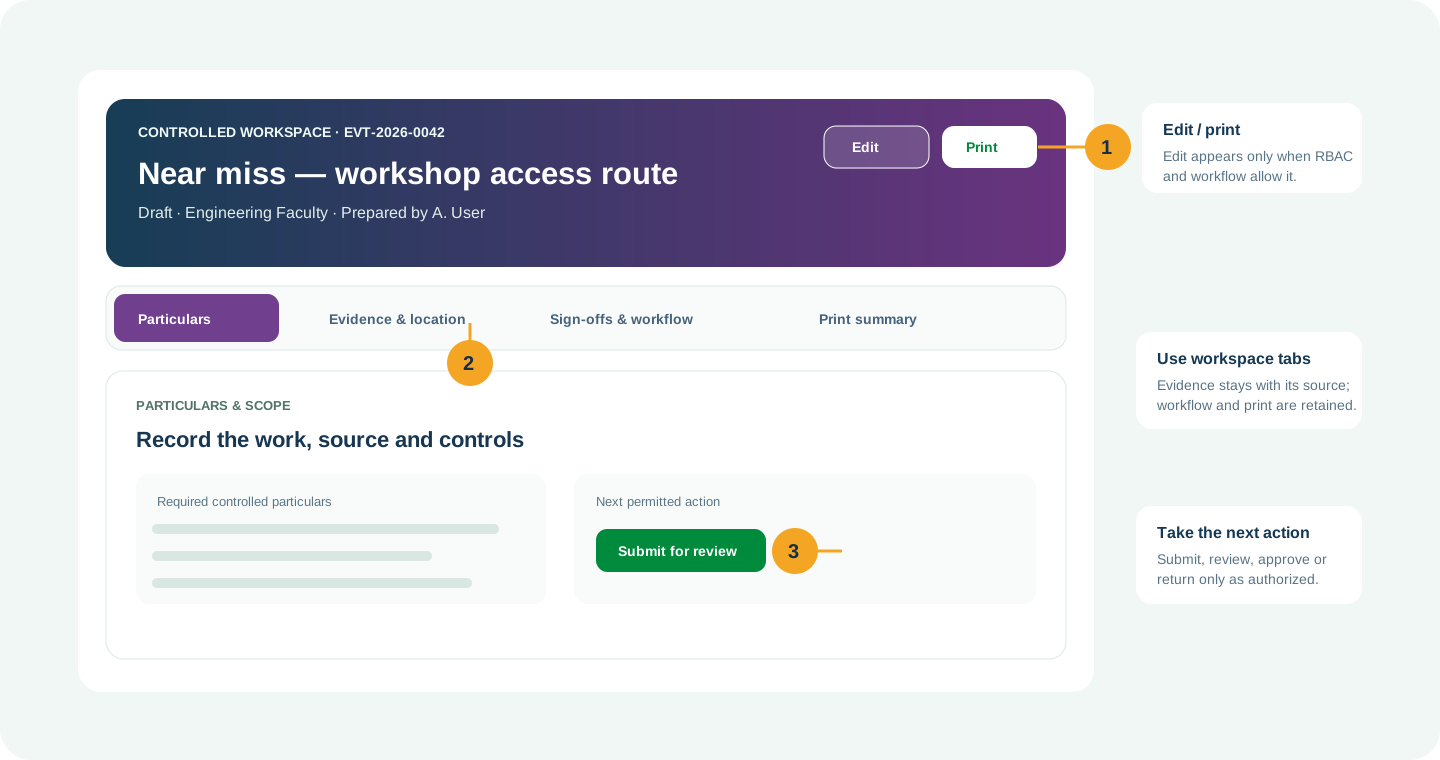
Complete the active tab, then use the highlighted action only when your role and workflow state allow it.


/packages/starter- Tap More in the bottom navigation.
- Select the relevant shared service or search for it in the module picker.
- Open the linked controlled workspace before taking an action.
The service displays only the records/functions authorized by your active role and organization-unit scope.
03 INSIGHTS & ADMINISTRATIONSaaS packages & organization managementCategorize organizations by subscription package and manage quota changes with audit history.
What you can do
- Use the submenu above the hero to open Organizations, Packages & quotas, Registrations, Package enquiries or System & audit logs.
- Filter organizations by Starter, Essential, Professional, Enterprise or Unassigned. Search the register and open Detail / Manage.
- Select a package, effective dates and a reason. Preserve approved custom quotas where appropriate; otherwise package defaults apply.
- Quota fields have explicit labels and units. A blank optional limit means uncapped. Usage checks prevent a downgrade below current usage.
- Starter activation requires email verification. Inspect failed email delivery in Registrations and check the server mail configuration.
- PIC remains Enterprise. Seeded organizations and coordinates are clearly marked Demo.
Authorized role examples
Active SaaS Administrator only.
Example scenario
A SaaS administrator changes a subscription after the sales proposal is approved and checks the package history.
ANNOTATED CLICK GUIDE
Complete the active tab, then use the highlighted action only when your role and workflow state allow it.


/saas- Tap More in the bottom navigation.
- Select the relevant shared service or search for it in the module picker.
- Open the linked controlled workspace before taking an action.
The service displays only the records/functions authorized by your active role and organization-unit scope.
04 INSIGHTS & ADMINISTRATIONOrganization administrationOrganization profile, users, roles, organization-unit scope, reference data, retention and entitlement configuration.
What you can do
- Open Profile & branding to view organization details, contact/address, regional settings, logos and colors. Select Edit profile & branding, complete the popup steps and save.
- Open Organization Units and select View / Edit on a unit to view its organization/status and update its code, name, type or parent. Duplicate codes, parents outside the organization and circular hierarchies are rejected.
- Provision users with roles and organization-unit scope. Maintain reference data, branding, retention and module entitlements.
- Review audit logs and do not use administration to bypass controlled record workflow.
Authorized role examples
Organization Administrator only.
Example scenario
An administrator updates a unit name through View / Edit while its record ID and existing references are retained.
ANNOTATED CLICK GUIDE
Set roles and organization-unit scope, then save the controlled access change.


/admin- Tap More in the bottom navigation.
- Select the relevant shared service or search for it in the module picker.
- Open the linked controlled workspace before taking an action.
The service displays only the records/functions authorized by your active role and organization-unit scope.
05 INSIGHTS & ADMINISTRATIONEnterprise integrations & platform administrationIdentity, SSO, integrations, communications, deployment, tenant and quota configuration.
What you can do
- Configure and validate identity/integration settings under change control.
- Monitor delivery/reconciliation outcomes and use audit trails for exceptions.
- Use platform administration only for authorized tenant governance.
Authorized role examples
Organization Administrator for organization integration; Platform Administrator for tenant/platform controls.
Example scenario
An organization administrator validates its SSO configuration in a controlled test before enabling it for organization users.
ANNOTATED CLICK GUIDE
Complete the active tab, then use the highlighted action only when your role and workflow state allow it.


/admin/enterprise- Tap More in the bottom navigation.
- Select the relevant shared service or search for it in the module picker.
- Open the linked controlled workspace before taking an action.
The service displays only the records/functions authorized by your active role and organization-unit scope.
No module or function matches this search. Try a role, module name or action such as “print”, “evidence” or “CAPA”.
COMMON CONTROL PATTERN
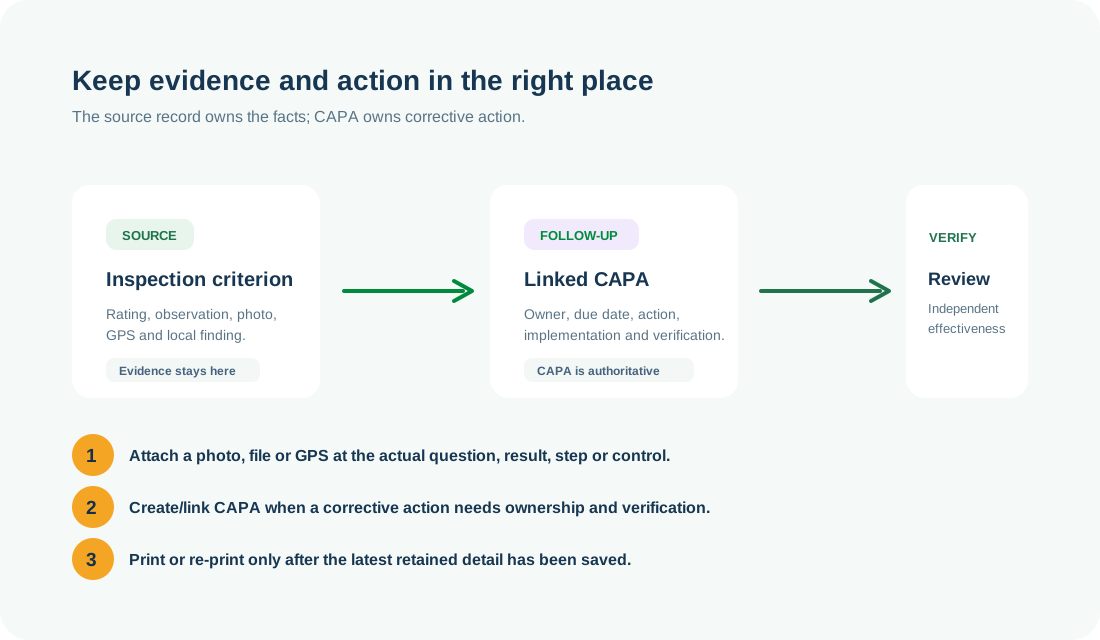
Use the right workspace for the next action
NEED HELP?
Share the record reference, workspace URL and displayed error reference.
Do not include restricted medical, identity or personal data in a support request.